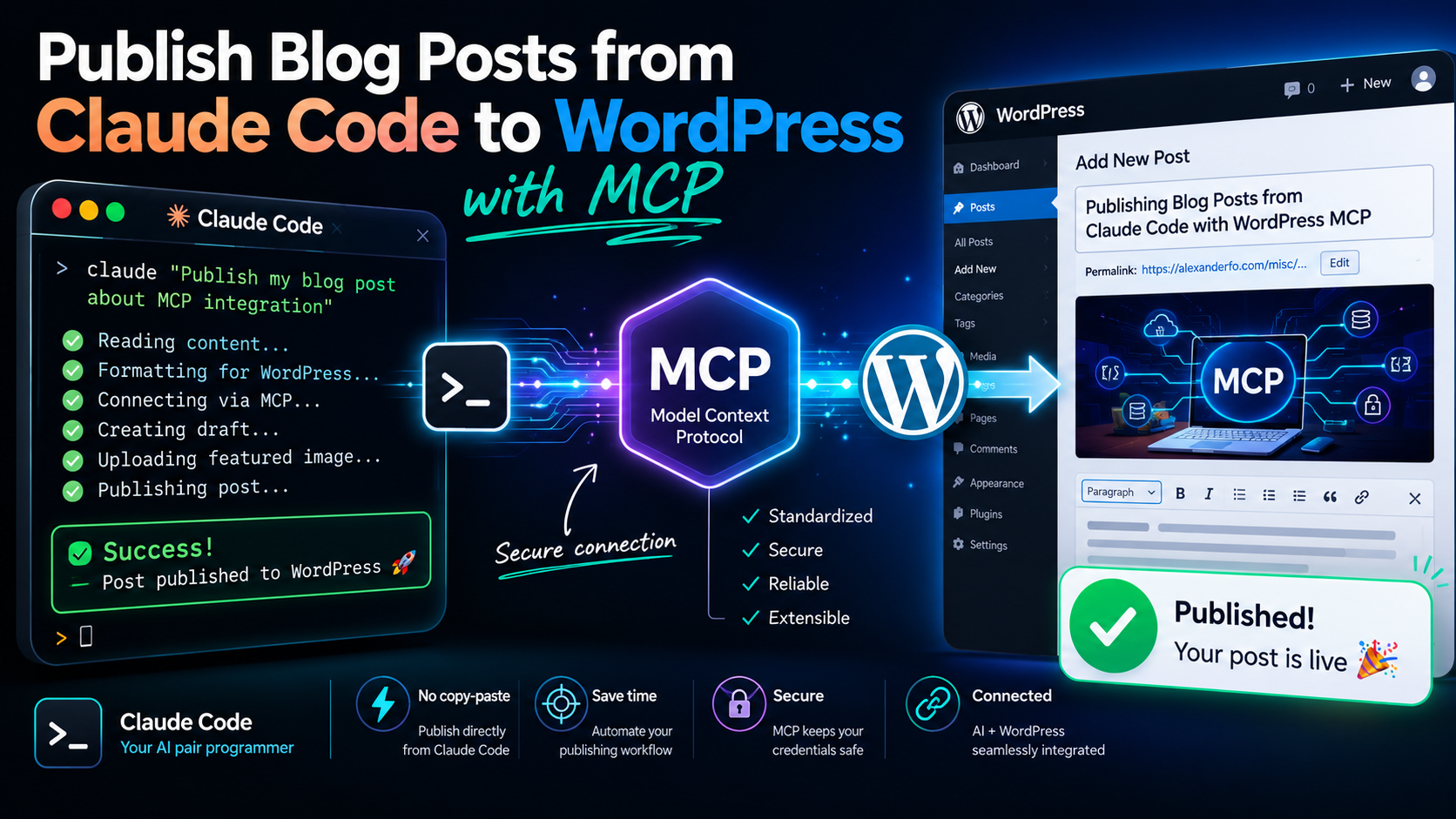
If you use Claude Code as part of your daily workflow, you’ve probably thought about reducing the friction between doing something interesting and writing about it. I did. Every time I shipped a feature, debugged a gnarly issue, or discovered a new tool, the blog post about it would sit in my mental backlog for weeks — and usually die there.
The fix turned out to be simpler than expected: connect Claude Code directly to WordPress MCP, so drafting and publishing happens in the same terminal session where the work itself happens.
What Is WordPress MCP?
MCP (Model Context Protocol) is a standardized interface that lets AI tools interact with external services — databases, APIs, SaaS platforms. Think of it as USB-C for AI integrations: one protocol, many services.
Claude Code supports MCP servers natively. You configure a server, and its capabilities become available as tools Claude can call during a conversation. There are MCP servers for Slack, Jira, MongoDB, and — relevant here — WordPress.
Why the Official Automattic WordPress MCP Adapter
There are several third-party WordPress MCP packages floating around npm. I initially looked at a few before landing on @automattic/mcp-wordpress-remote — the official adapter maintained by Automattic, the company behind WordPress.
The reasoning is straightforward:
- It’s maintained by the people who build WordPress
- It uses the official REST API under the hood
- It gets updated when WordPress changes
- The authentication model is well-documented
For a single-user setup like a personal blog, this is the right tool.
Prerequisites
Before starting, you need:
- A self-hosted WordPress site running version 6.9 or later
- Admin access to your WordPress dashboard
- Claude Code installed and working
- Node.js (for
npxto run the MCP server)
Step 1: Install the WordPress MCP Adapter Plugin
The official MCP Adapter plugin exposes a REST endpoint that the MCP server connects to.
- In your WordPress dashboard, go to Plugins → Add New Plugin
- Search for “MCP Adapter” by Automattic
- Install and activate it
Once activated, the plugin registers a new REST API endpoint at:
https://your-site.com/wp-json/mcp/mcp-adapter-default-serverNo configuration needed on the plugin side — it works out of the box.
Step 2: Create an Application Password
WordPress Application Passwords let external tools authenticate without your main login credentials. They’re scoped, revocable, and don’t require OAuth infrastructure.
- Go to Users → Profile in your WordPress dashboard
- Scroll down to the Application Passwords section
- Enter a name (e.g.,
claude-code) and click Add New Application Password - Copy the generated password immediately — WordPress won’t show it again
The password will look something like XXXX XXXX XXXX XXX — spaces included. Keep the spaces when you use it; WordPress expects them.
Step 3: Add the MCP Server to Claude Code
Claude Code manages MCP servers through the CLI, not config files. Run:
claude mcp add wordpress --scope user -- npx -y @automattic/mcp-wordpress-remote@latestBreaking this down:
wordpressis the name you’re giving this server (arbitrary, but descriptive)--scope usermakes it available across all your projectsnpx -y @automattic/mcp-wordpress-remote@latestruns the official adapter without a permanent install
This creates an entry in ~/.claude.json with the server definition.
Step 4: Configure Environment Variables
The CLI command creates the server entry but doesn’t set authentication. You need to add environment variables to the server config in ~/.claude.json.
Find the wordpress entry under mcpServers and add the env block:
{
  "wordpress": {
    "type": "stdio",
    "command": "npx",
    "args": [
      "-y",
      "@automattic/mcp-wordpress-remote@latest"
    ],
    "env": {
      "WP_API_URL": "https://your-site.com/wp-json/mcp/mcp-adapter-default-server",
      "WP_API_USERNAME": "your-wordpress-username",
      "WP_API_PASSWORD": "your-application-password",
      "OAUTH_ENABLED": "false"
    }
  }
}
A few notes:
WP_API_URLpoints to the MCP Adapter endpoint, not the standard WordPress REST APIWP_API_USERNAMEis your WordPress login usernameWP_API_PASSWORDis the Application Password from Step 2, spaces and allOAUTH_ENABLEDset tofalsetells the adapter to use Application Password auth instead of OAuth
The credentials are stored in plaintext in ~/.claude.json. This is consistent with how other MCP servers store credentials in Claude Code. If this concerns you, ensure your home directory permissions are locked down.
Step 5: Restart and Test
MCP servers load at startup, so restart Claude Code after making changes.
Once restarted, the WordPress tools should appear in your available MCP tools. You can verify by asking Claude to discover the available WordPress abilities or list your recent posts.
At the time of writing, the MCP Adapter plugin does not expose post creation or retrieval abilities — the only available tools are Yoast SEO score queries. That means you can’t yet create or list posts through the MCP interface. To actually publish, you’ll need to call the WordPress REST API directly (which uses the same Application Password credentials). The toolset is still maturing, so expect post management abilities to land in a future update.
The Workflow in Practice
With the connection live, the blog workflow becomes conversational:
- Finish a piece of work in Claude Code
- In the same session, ask Claude to draft a blog post about what you just did
- Review and refine the draft
- Publish directly to WordPress as a draft for final review in the WordPress editor
The key advantage isn’t automation for its own sake — it’s reducing the gap between doing and documenting. When the blog post happens in the same context as the work, the details are fresh and accurate.
Caveats
Plugin maturity: The MCP Adapter plugin is relatively new. As of June 2025, it only exposes Yoast SEO abilities — no post creation, retrieval, or updating. To publish posts programmatically, you need to hit the WordPress REST API directly using the same Application Password. The MCP adapter gives you the authentication plumbing and the connection, but the post management abilities haven’t landed yet. Expect this to change as the plugin matures.
WordPress 6.9 requirement: If your site runs an older version, you’ll need to update before the plugin will work. Check compatibility with your theme and other plugins before upgrading.
Plaintext credentials: As mentioned, Application Passwords sit in ~/.claude.json unencrypted. This is a known trade-off with the current MCP server configuration model.
No OAuth: For a personal blog with a single author, Application Passwords are fine. For multi-user or organizational setups, you’d want OAuth — which the adapter supports but requires more infrastructure to configure.
Wrapping Up
If you’re already using Claude Code for development work and maintain a technical blog, wiring up WordPress through MCP removes the biggest friction point in publishing: context switching. The setup takes about ten minutes, and the payoff is that writing about your work becomes part of the work itself rather than a separate task you never get to.
Start with drafts. Review them in WordPress before publishing. Once you trust the flow, you can tighten the loop further.